
LastPass: Enable Multi-factor Authentication
1. While logged in to your LastPass account, click Account Settings and click on ‘Multifactor Options’. Look for ‘Google Authenticator’ and click the pen icon to edit its settings.
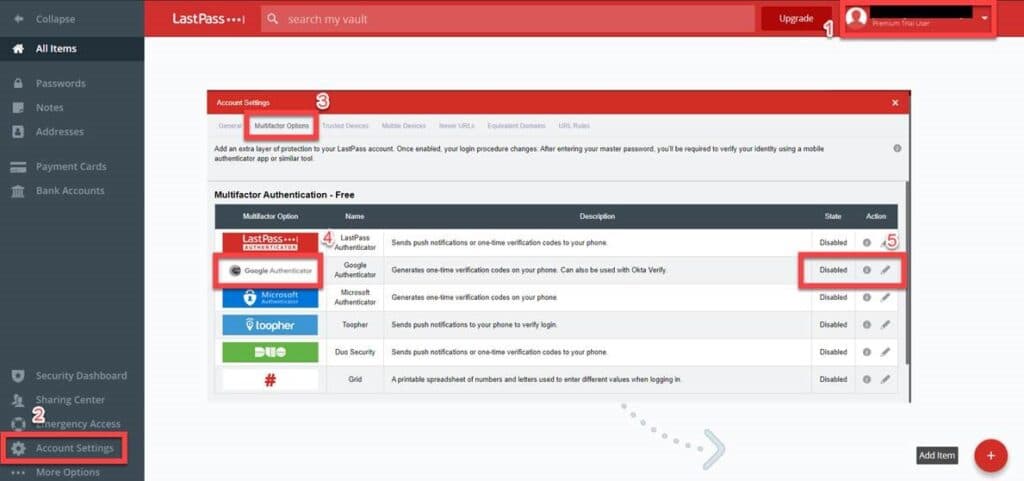
2. On the next page, set Enabled to ‘Yes’. Then, click on ‘View’ to open the barcode. You’ll be prompted to enter your LastPass Master Password and hit ‘Continue’.
3. On your mobile phone, open the Duo Mobile app, click on the + sign to open the camera and scan the barcode. Once added after scanning, hit OK and click Update. You will be prompted again to enter your LastPass Master Password to proceed.
4. On the next prompt, go back to the Duo Mobile app and enter the verification code to proceed.
5. MFA is now enable.
This site is protected by reCAPTCHA and the Google Privacy Policy and Terms of Service apply.